Prepare – Supports & Surface Tools
This page covers interactive tools in Prepare mode that let you paint or restrict behaviors on specific surfaces.
Paint Support Tool
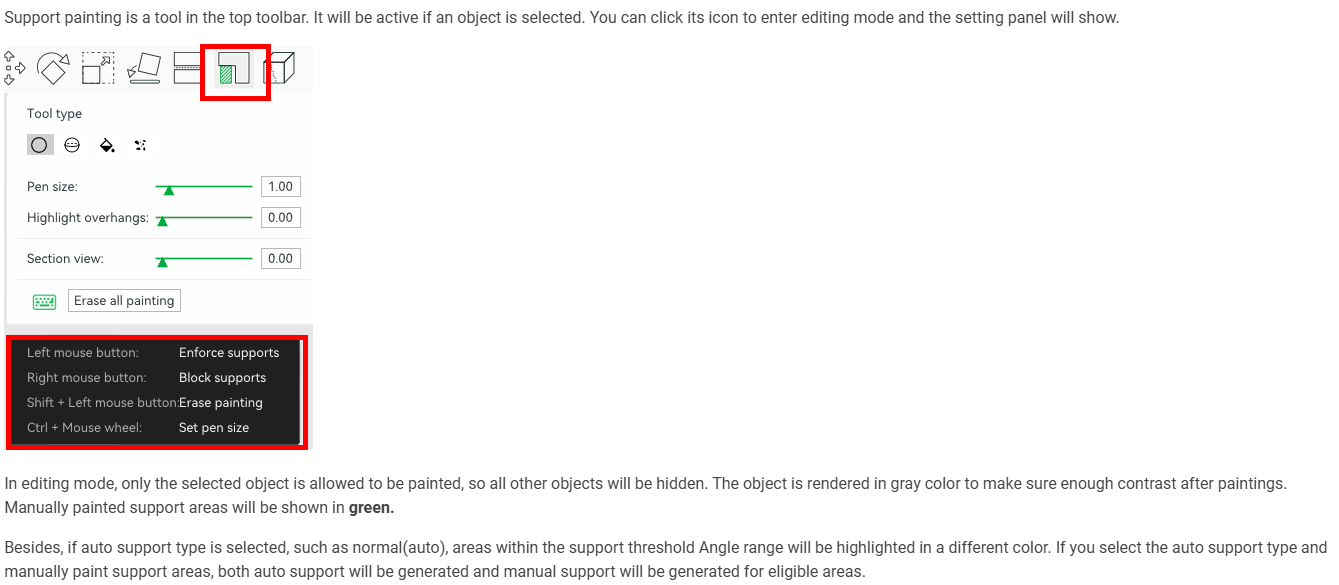
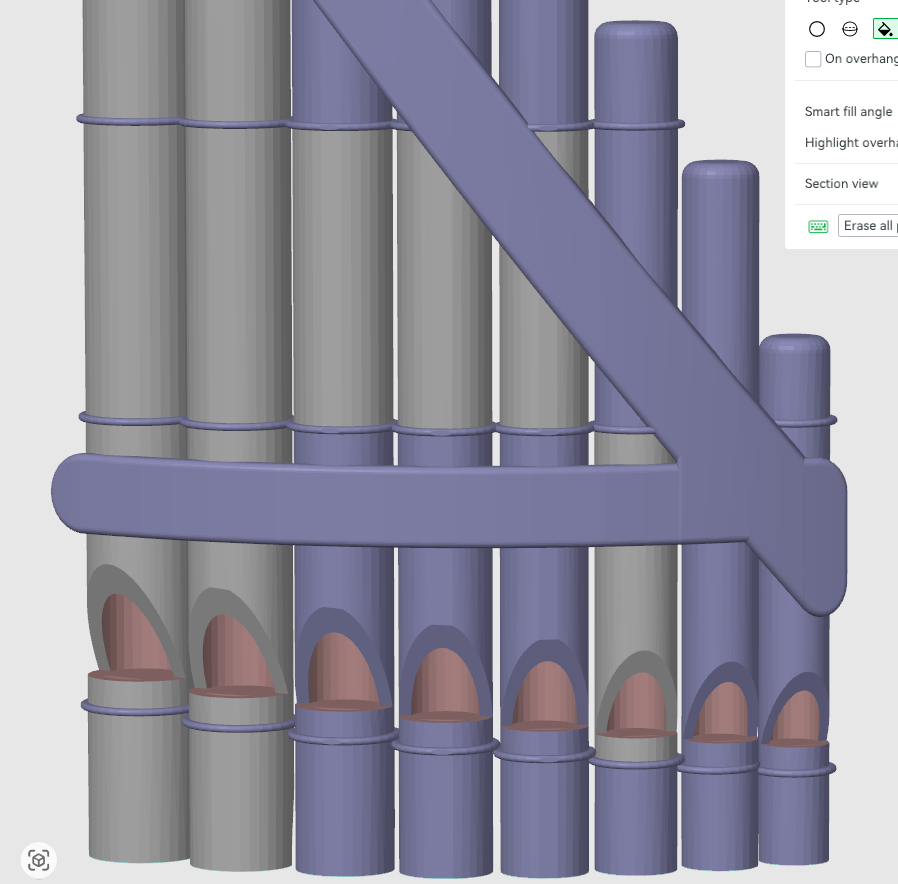
Paint Support lets you tell Bambu Studio exactly where supports are allowed (or forbidden) on a model surface.
Controls & colors (as shown in the UI)
- Left mouse button: Enforce supports (Purple)
- Right mouse button: Block supports (Red)
- Shift + Left mouse button: Erase painting (Grey / default surface)
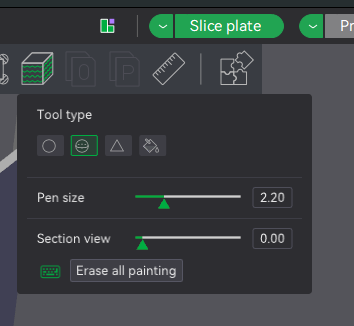
- Ctrl + Mouse wheel: Set pen size
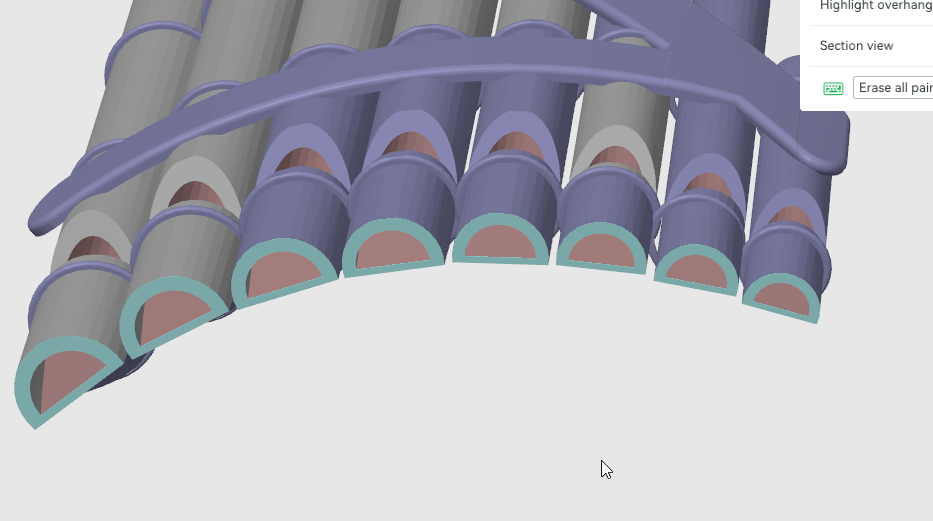
- You may also see a cyan highlight where the model contacts the build plate (visual aid).
Tip: Treat this as “painting rules” onto the surface. You are not placing physical supports—you’re defining where the slicer is allowed to generate them.
Fuzzy Skin Painting Tool
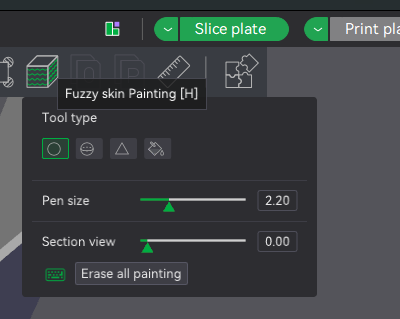
Fuzzy Skin painting is used to apply (or exclude) fuzzy skin on specific surfaces, instead of enabling it for the entire model.
See also: Prepare → Fuzzy Skin (density controls, stability/vibration fixes, and a thin on-edge roof example).
Fill tool options
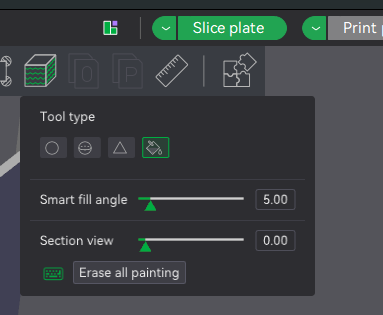
- Smart fill angle: Limits the fill to connected faces that fall within an angle range. Useful for quickly targeting a band of surfaces without spilling onto neighboring geometry.
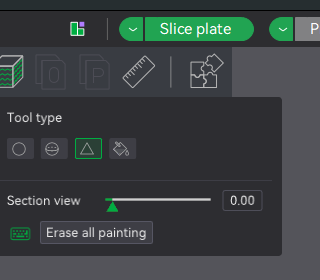
- Section view: Lets you see and paint internal/occluded surfaces by cutting the view. Helpful when the area you want to paint is hard to reach from the outside.
Tip: If fill is jumping onto faces you didn’t intend, lower the smart fill angle so it stays on surfaces that are closer to the face you clicked.
Related: Prepare (landing)